
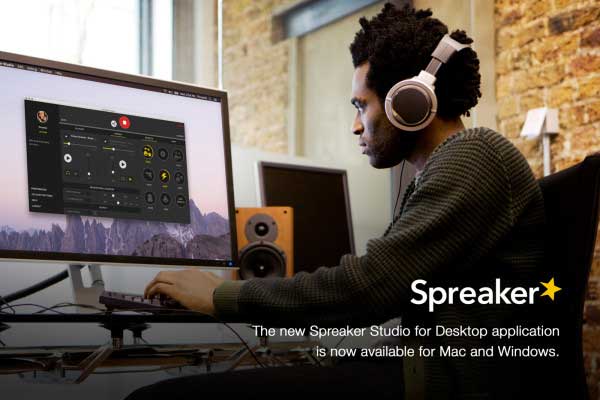

Today we are happy to introduce our latest tech milestone that will give you the chance to record and stream live in an even more professional way, in a stabler environment.
The new Spreaker Studio app is now available for download on Windows and Mac. You’ll have all that you need to stream live or record a professional podcast, using a fine-tuned broadcasting studio from the comfort of your PC. Plus you’ll be able to take guest call-ins with ease without any additional configuration.
For those of you currently using Spreaker Studio for Android or iOS, things will look familiar. Let’s jump in and have a walk through all the features the app offers.
Update: Listen to this Spreaker Live Show’s 39 min episode for a complete audio explanation of all the features of Spreaker Studio for Desktop on Mac/Windows:
What you can do with Spreaker Studio
It all begins when you click START. Go live or record your content offline and then publish or edit later. Pro Station plan users will, of course, be able to choose to go live for an unlimited amount of time.
You’ll still be able to add songs to your podcasts, but the flow is now sleeker and more intuitive. You have two choices: you can create playlists or add single tracks at a time.

If you create a playlist: under Playlists, click on Add Tracks and then add files from your computer to a start building a playlist. Once you’ve added your desired amount, enable Auto DJ to have the songs play in a continuous queue, from first to last without interruption.
If you choose the Track Option: to have a bit more control, opt for Tracks. Click on the “+” signs in each deck to add an audio file or song. You’ll be able to fade in and out of each as you segue into new topics or interviews.
An ample selection of sound effects is also available to the right of the console. Click on the different icons as you record and stream to add a new dynamic to your content. You can also upload your own sound effects if you want to give an even more personal touch by clicking on the “+” sign at the bottom and adding audio files on your computer. By clicking on Edit, you’ll be able to delete any unwanted sound effect by clicking on the”x” symbols that appear. You’ll then have more room to upload even more sounds.

For those of you who decide to stream live, a chatbox will be available to your listeners so that you can interact with them directly, taking requests and answering questions in real-time.

All the comments that you get will still be readable on the track’s page on the episode’s web page.
Manage drafts and episodes
Every time you broadcast offline, your episode will be saved as a draft that can be modified and published whenever you prefer. To access these drafts, click on the audio signal symbol in the left-hand menu.

Double click on a draft’s title to make changes, and drag and drop images into the graphics box to customize further. It’s up to you to publish it once you’re done, or delete it entirely. To make further modifications, access Spreaker’s website and go into the published episode’s page settings.
Setting up your Mic and Sources
Using professional equipment with Spreaker has never been easier. With Spreaker Studio you’ll be able to select different input and output sources directly from our console, so you’ll never have to worry about toggling your computer’s sound settings or using extra software again.

However, don’t forget to keep the mute and monitor features in mind. Make sure you have the monitor option selected if you want to listen to your audio through your headphones as your record or broadcast. If mute is selected, that particular source will be muted to your audience. So even if your playlist is playing your audience won’t be able to hear it. In other words, the monitor button controls what you hear, whereas the mute button controls what your audience hears.
Using Skype with Spreaker
Want to take calls while you’re going live? Whether you’re taking questions from your listeners or phoning in a guest or co-host, now you’ll be able to do so easily thanks to streamlined Skype integration.

Download Soundflower’s software (this version, if you’re running OS X El Capitan) and if you have a Windows computer, download VB-cable; set it all up through the input and output sources in Spreaker Studio. In your Skype’s settings, in Preferences, allow Spreaker Studio to connect with your account. Once you’ve configured the apps, get ready to take call-ins with ease with good audio quality and zero struggle! We also offer a simple tutorial right in Spreaker Studio’s menu to help guide the way, just click on the Skype icon.
Like what you see? Want to try it out yourself? Download Spreaker Studio now and help us spread the word about the news!
Write for Us
Think you’ve got a fresh perspective that will challenge our readers to become better podcasters? We are always looking for authors who can deliver quality articles and blog posts.